> ## Documentation Index
> Fetch the complete documentation index at: https://docs.useautumn.com/llms.txt
> Use this file to discover all available pages before exploring further.
# Connecting
> Attach ClickHouse to your Autumn Lakehouse catalog.
**Available on request** — The Autumn Lakehouse is provisioned per customer. Contact us at [hey@useautumn.com](mailto:hey@useautumn.com) to get access.
When your Lakehouse is provisioned, Autumn privately sends you:
* Your **catalog** and **namespace** names (the namespace is where your `v2_3_*` tables live).
* A **scoped access key and secret** for the underlying object storage.
* The **region**: `us-east-2`.
Keep these credentials private. Then connect your engine below.
#### Add a Data Lake Catalog
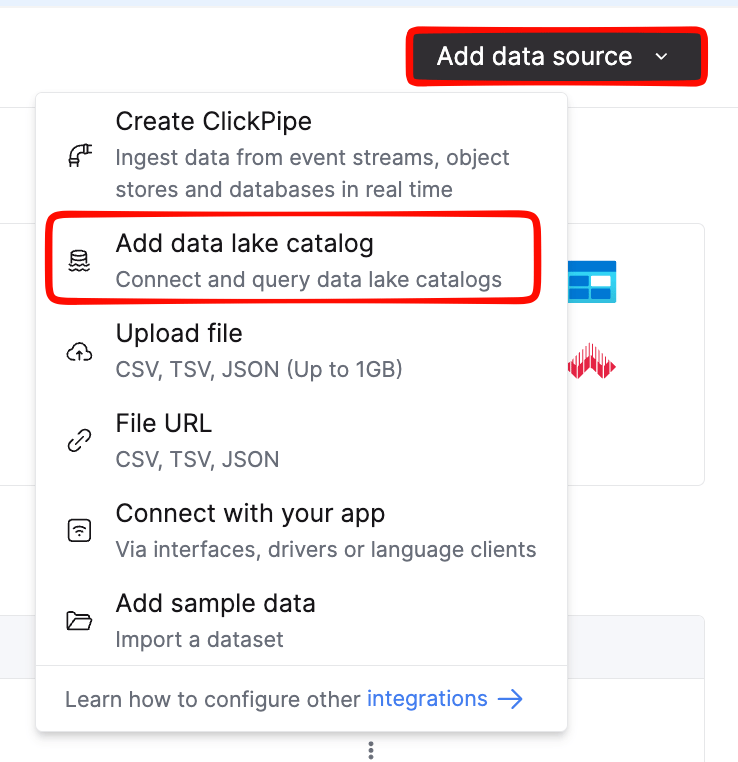
In ClickHouse Cloud, go to **Data Sources → Add → Data Lake Catalog → AWS Glue**.
#### Configure the catalog
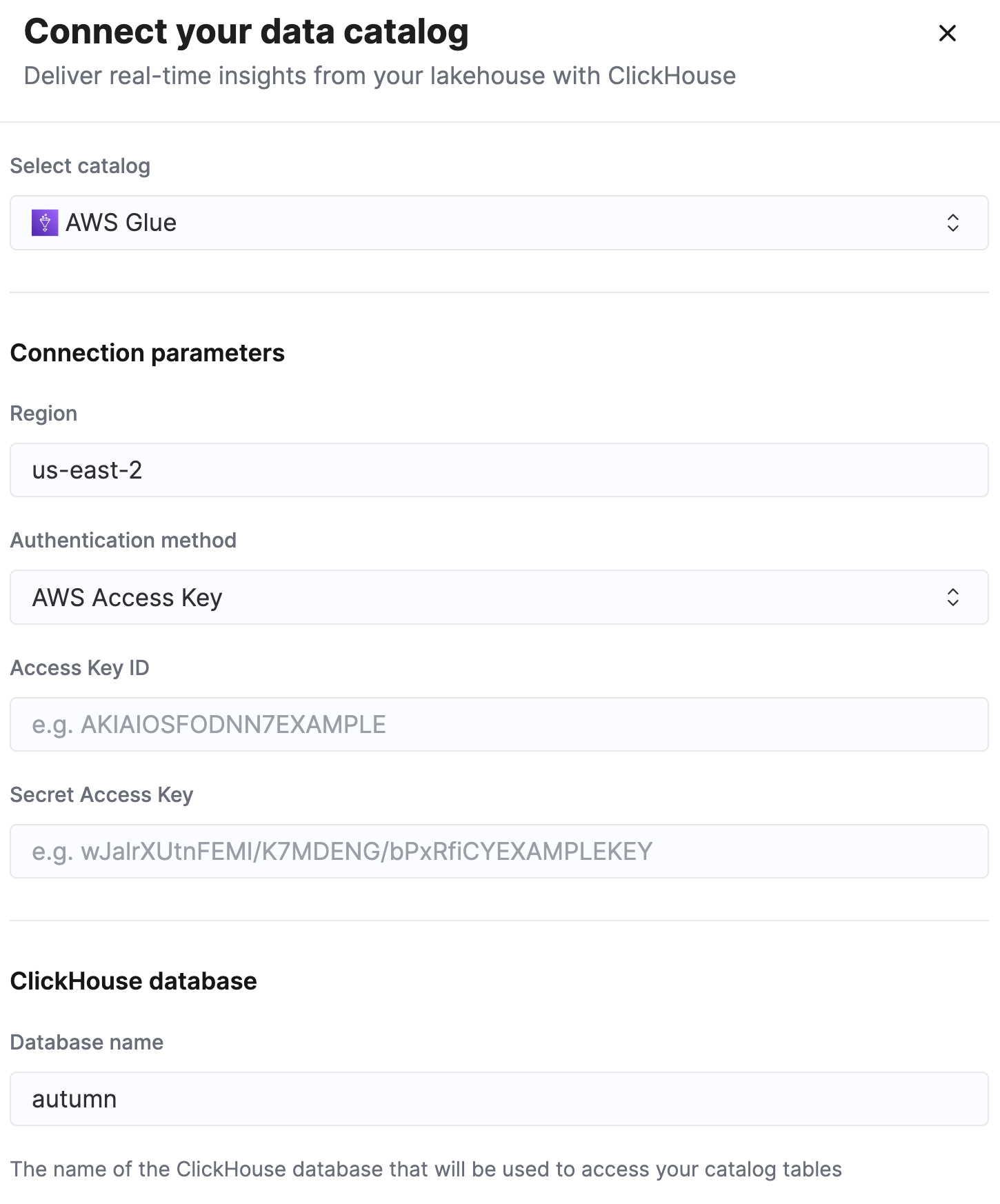
Set the **region** to `us-east-2`, then paste the **access key** and **secret** Autumn sent you.
#### Save and browse
Save the connection. The catalog mounts as a database, and your tables appear as `` ``.`.v2_3_
## Test the connection
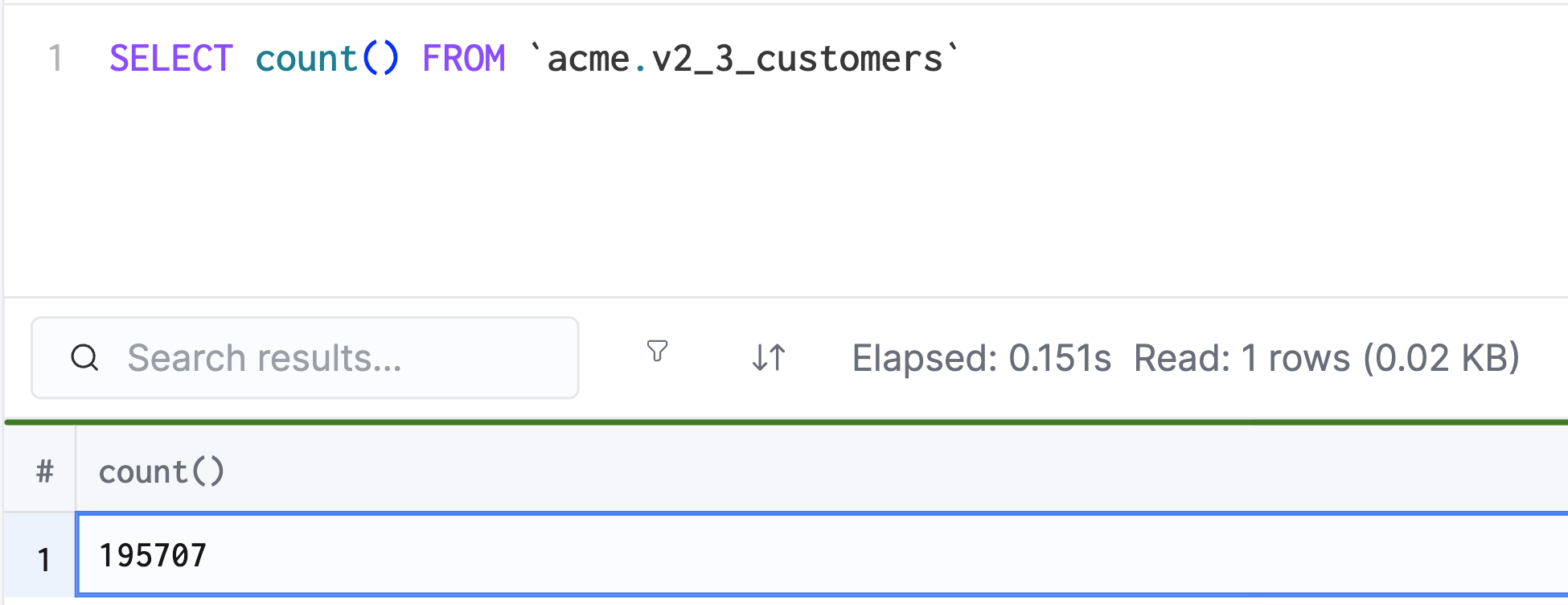
Run a quick count against any table to confirm everything is wired up:
```sql theme={null}
SELECT count() FROM ;
```
Once that returns, head to the [Schema Reference](/documentation/lakehouse/schema) to see what's available, then [Querying](/documentation/lakehouse/querying) for examples.
If you notice the number seems lower than expected, it's because it may take a few minutes to a few hours for your data warehouse to catch up.
 Once that returns, head to the [Schema Reference](/documentation/lakehouse/schema) to see what's available, then [Querying](/documentation/lakehouse/querying) for examples.
If you notice the number seems lower than expected, it's because it may take a few minutes to a few hours for your data warehouse to catch up.
Once that returns, head to the [Schema Reference](/documentation/lakehouse/schema) to see what's available, then [Querying](/documentation/lakehouse/querying) for examples.
If you notice the number seems lower than expected, it's because it may take a few minutes to a few hours for your data warehouse to catch up.