

/components directory, under a /autumn folder.
Usage
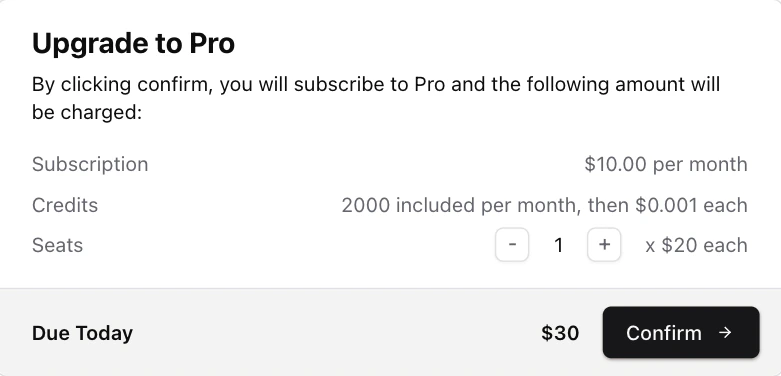
Pass in thecheckout-dialog component to the checkout() hook. This allows Autumn to automatically open the checkout dialog when they want to change their active product. The dialog will open if:
- The customer needs to input a quantity for their purchase (ie, if the product has prepaid prices)
- If the customer’s payment method is already on file (ie, for upgrades, downgrades or add-ons).
If there are no inputs required and it’s a new customer (without an existing
payment method), the customer will be redirected straight to the Stripe
checkout page.
Scenarios
When you installcheckout-dialog, a @/lib/autumn/checkout-content.tsx file is also installed. This file contains the dialog texts for each scenario (returned from the checkout function), which you can customize how you want.
/lib/autumn/get-checkout-content.tsx
Build your own
Typically when charging a customer’s card, you’ll want to display the payment information beforehand for the user to confirm. This is useful for upgrade, downgrade and add-on payment flows. Thecheckout function will return the data your customer will want to see, such as price information, billing cycle, etc.
If the customer’s payment details aren’t on file (eg, its a new payment),
checkout will return a payment URL.preview object that is returned from the checkout function can be used to display the data you want to the user.
Example implementation:
React
preview is returned, it will contain a scenario enum. You can use this to control the messaging you display to the user. See our shadcn/ui dialog messaging for an example.